Showing posts with label Tips and Tricks. Show all posts

Thursday, September 30, 2021

How To Find Deals, Offers, Price cuts, Cashbacks On Amazon And Flipkart Sales

We often miss the deals on Amazon and Flipkart sales. So here is a guide on How To Find Deals, Offers, Price cuts, Cashbacks On Amazon And Flipkart Sales

We will talk about how you can find deals and some tips and tricks for the best shopping experience on Amazon, Flipkart, Paytm, etc.

Amazon, Flipkart, Paytm, snapdeal, and others launch many offers and sales in festive seasons. Here is the complete step-by-step guide for anyone who wants to save money while shopping.

Prepare Yourself for the sales:

First of all, prepare yourself for sale, like make a note of everything you want to buy and add them to your wishlist.

As I observed, when the sale begins from amazon or Flipkart for the first 1 hour, there might be huge discounts on shoes, shirts, etc.

So add shoes, shirts to your wishlist or keep an eye on every brand of shoes and shirts when the sale is live.

And also, see the price of the product and research if it is worth purchasing. There are many cheap products, but the MRP shows a huge price, so it's not worth buying even after a discount.

"ALWAYS PREPARE TO LOOT. DON'T GET LOOTED"

To know how you can compare price and set alerts when price drops, see below.

Price Comparision, Tracker, Alert Extensions:

The most effective way to know if the product you are buying is worth the money and the discount is by looking at the price chart of the product for the past three months or a year.


Some extensions on chrome desktop and android apps can show the price chart of a product for the past year and set an alert if the price drops on a specific product.

Best price trackers and comparison extensions for Chrome and android

These are some popular extensions on Chrome:

  1. Buyhatke
  2. Keepa
  3. Price Tracker - Auto Buy, Price History

These are some apps for android

  1. Buyhatke
  2. Pricetrackers
  3. Keepa

Deals of the day and Lightning deals on amazon and Flipkart:

Flipkart and Amazon offer deals of the day and lightning deals daily. To access deals of the day offer, you can see the option in the amazon app as "TODAY'S DEALS" and "OFFER ZONE" in Flipkart.

This way, you can find the deals on your own. However Paytm, Snapdeal options are a little different, but it's the same mostly.

Join Telegram and Whatsapp groups for best deals on Amazon and Flipkart

You can also join Telegram and Whatsapp groups which send special loot deals and discount codes. There are many deals and offer related groups. You can find them on google.


But on telegram, these are some popular groups you can join to get alerts.

  1. Technical Future
  2. Desidime
  3. Bigtricks
  4. Loot4you.in

You can search on telegram to join these groups or click on the group names to join.

Best website to keep you updated about the flash sales and offers:

Many websites let you know the best deals, offers, cashback, discounts, and flash sales. Here are some of the best websites to keep you updated every day.

  1. Desidime
  2. Bigtricks
  3. Coolztricks
  4. Loot4you

Amazon and Flipkart coupons:


Both Amazon and Flipkart coupons are available daily which will drastically reduce the price of the product.

You can find the coupons in Flipkart by selecting "MY COUPONS" or "REWARDS" in the three-dot menu or the top menu of desktop mode.

Especially in Flipkart's big billion days and amazon's great Indian festival, there are a lot of coupons with high cashback and discounts. So take a look at these coupons once in a while.

Collect all the coupons, and when you buy the product, if the coupon is eligible on the product, it will automatically reduce the price, or it will show coupon is available on the product.

Purchase the products through Cashkaro or Zingoy website:

  1. Cashkaro and Zingoy gives affiliate commission if you buy any product through them,
  2. The commission depends on the product type, but you can assume. It would be around 3 to 5% on the total price.
  3. So if you buy a 40000rs product and the commission is around 3%, you can get 1200rs from this website.
  4. The commission confirms within 60 days after the delivery.
  5. You have to wait a long time, but still, you need one click on amazon or the Flipkart option in CashKaro or Zingoy to get an extra commission. So it's an easy process.
  6. And also discounts and cashback too if you pay online or a credit card on Amazon or Flipkart.

Offers on a particular product:


Amazon and Flipkart offer complementary services and discounts on specific products, especially at the big billion and great Indian festival season.

If you see the product page on Amazon or Flipkart, you can see the offers below the image.

All the discounts, cashback, complementary offers, coupons are mentioned here.

Tips and Tricks to loot Products at discounts, price cut, cashback:

  1. First of all, get an amazon prime or Flipkart plus account ready for the sale.
  2. For the first 1 or 2 hours of the sale, shoes, shirts, and headphones get a massive price cut and discounts.
  3. So add some products like shoes, shirts, etc., to your wishlist to cart before the sale begins.
  4. Look for credit card discounts.
  5. Before purchasing, go through CashKaro or Zingoy to get extra cashback.
  6. Add your debit or credit card to make faster payments or add money to amazon pay wallet or Flipkart wallet.
  7. So you can order the products before it goes out of stock.
This is how you can find deals and offers on amazon great indian and flipkart big billion day sales.


How to win more cashback From Scratch cards using Cred

How to win more cashback using Cred

Cred has become famous for giving cashback and rewards for paying credit card bill payments. Here we will learn how to win more cashback using Cred.

The trick to getting Multiple scratch cards on Cred:

  1. Firstly, open Cred.
  2. If you have a bill amount of 20,000rs, then split the amount and pay multiple times.
  3. For example, if you have 20,000rs to pay, then pay 5,000rs one time and 5000rs again and repeat.
  4. Remember, now Cred only gives five scratch cards for a credit card in a month.
  5. So if you pay six times like this, you will not receive the scratch card because only five are permitted per card.
  6. If you use this trick and pay 20000rs amount four times, i.e., 5000rs payment for four times, you will receive four 1000rs scratch cards and four 5000rs scratch cards.
  7. You can earn a maximum of 100 to 150rs by using this trick.

Cred also gives cred coins that can be redeemable on the cred store for discounts.

The best way to earn cashback/rewards for credit card bill payment

The best way to earn cashback/rewards for credit card bill payment

Here is a post on "The best way to earn cashback/rewards for credit card bill payment." While paying the credit card bill payment, you can earn gift vouchers and cashback, the same as spending credit cards on shopping.

There are three methods to earn cashback or rewards for paying credit card bill payments.

  1. Mobikwik
  2. Cred
  3. Amazon

How to earn cashback on Mobikwik for Creditcard bill payment:

  1. Firstly, open Mobikwik.
  2. Generally, most banks like SBI, HDFC, and ICICI offer rewards on paying through debit cards.
  3. Log on to the net banking of your bank.
  4. I have SBI, so I have logged into sbi net banking, and there is an option "SBI REWARDS."
  5. The points earned through debit card transactions can be seen here.
  6. You can convert these points to Gift vouchers like Amazon, Flipkart, etc
  7. Now add money to MobiKwik wallet through a debit card from SBI or any bank to get rewards for using a Debit card.
  8. Now head to Creditcard bill payment service.
  9. Enter card details.
  10. Apply coupon code "CCPAY" to get 2% Supercash upto 500rs.
  11. Now pay the amount from MobiKwik wallet.
  12. That's it. Now you have 2% super cash and reward points for using the Debitcard of your bank.

Using Cred to earn cash back on credit card bill payment:

Cred offers assured cashback for paying credit card bill payments. Just install Cred and make a payment on your credit card. You will receive scratchcards.

You will receive an assured cashback on the scratch cards and also cred coins which are used to buy gift vouchers or products at low prices.

How to earn cashback for paying credit card bill payment using amazon

Amazon has cashback offers on paying your credit card bill payment. Every month amazon gives upto 100 or 300rs as cashback and scratch cards which have assured cashback.

But credit card payment is not instant like Cred and MobiKwik; you need to wait atleast 48 hours to receive the amount on your credit card.

Conclusion:

Mobikwik offers a high amount of cashback compared to amazon because you can earn on MobiKwik and via debit card of your bank. And the second is Cred.

Wednesday, September 29, 2021

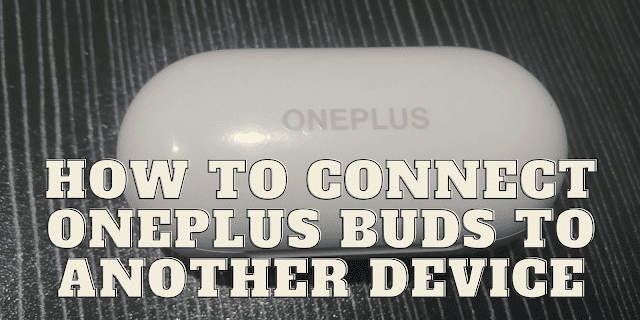
How to Connect Oneplus Buds To Another Device

How to Connect Oneplus Buds To Another Device


Here we will see "How to Connect Oneplus Buds To Another Device," and can we connect two devices simultaneously with oneplus buds.

  1. Place the buds in the charging box.
  2. Keep the charging box open, Don't close the lid.


  3. Now press the button at the backside of the charging box for 5 to 10 seconds.
  4. You will see a white light blinking on the charging box.

  5. Now turn on Bluetooth on your mobile, and you will see a pop-up that detects the buds automatically.
  6. If it doesn't appear, then see the available devices in the Bluetooth list.
  7. And click on connect. The buds connect to your device successfully.

Can you connect two devices simultaneously?

No, Oneplus buds don't have the feature to connect multiple devices at the same time.

How To Change User Folder In Windows 10 Without Using Command Prompt

How To Change User Folder In Windows 10 Without Using Command Prompt

This guide will help you change the user folder name on windows 10 without using the command prompt.

Changing the user name of a folder, especially when it is a system name, is quite hard. So to change the user name, you need to follow these steps below.

Important Note:You need to change the user folder name and registry name to rename without any errors in windows 10.

How to change the user folder name in windows 10 without using command prompt:

  1. Firstly, create a user and give administration rights.
  2. Go to Settings>Accounts>Family and Other Users>Add someone else to this pc.

  3. After that, click on "I don't have this person's Microsoft account" and "Add a user without a Microsoft account."

  4. Secondly, enter your preferred username and password.
  5. Now Click on "Change Account Type" and select Administrator rather than Standard.
  6. Imp step to follow: Go to the start menu and profile, Right-click to sign out.
  7. Now sign in to another user and go to Filemanager>Select the C-Drive in which the os is installed.
  8. Go to users and right-click on the folder, and select rename option.
  9. Change the name and apply.
  10. That's it. You have successfully changed the name of the user folder. Now it's time to change the registry.

How to change the user folder name in the registry:

  1. Go to the search bar, type Regedit, click on "Run as administrator," or press Win+R on the keyboard, type "Regedit," and click on enter.
  2. The registry opens. Now go to
    1. HKEY_LOCAL_MACHINE\SOFTWARE\Microsoft\Windows NT\CurrentVersion\ProfileList
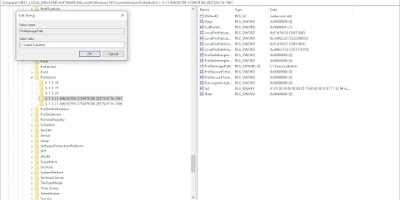
  3. Now select a key name in the profile list, which looks like in the below image.

  4. You can see the "Profile Image Path," where you can confirm by seeing the name of other user's folder.

  5. And Double-click on the Profile image path, a dialog box opens, Now change the name over here in the same way you changed via file manager.

  6. Click "OK" and close all the windows.
  7. Now restart the computer and log in to the original user. You can see the name changed by confirming in the file manager.
  8. Now remove the other user from the setting menu.
  9. You have successfully changed the user folder name.

This is the guide on how to change the user folder name in windows 10 without using the command prompt.

Monday, September 6, 2021

How To Adjust Brightness Without Fn Key

There are many ways to adjust or control brightness without the fn key on your laptop. You can control brightness by sliding the brightness slider from the action center of your windows laptop. And we will learn How to adjust brightness using AutoHotKey on windows.


However, it's not a comfortable way to adjust your brightness using the Action center. If your Fn key is not working, this is almost the only way to change the brightness.


There are no apps to control brightness with one key on your keyboard or with just one click. I have tried some apps like Dimscreen, but they are not up to the mark.


AutoHotKey is the only software that is easy to use for controlling or adjusting brightness, and it's straightforward compared to all the manual methods.


With the AutoHotKey program, you can press F6 and F7 to increase and decrease the brightness.


How to adjust brightness using AutoHotKey on windows:

  1. First of all, download AutoHotKey from the website.
  2. Secondly, install the software on your computer.
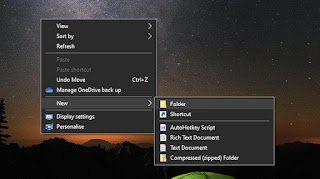
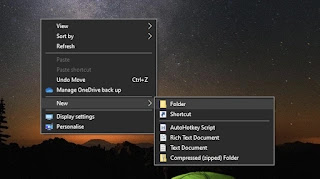
  3. Thirdly, Right-click anywhere on the desktop, Goto>"NEW">AutoHotKey Script.

  4. A folder will be created on the desktop. Right-click on the folder Goto>"EDIT SCRIPT."

  5. After that, notepad opens now you will see some text in it delete everything and copy the code below and paste it into the notepad.
    ; Variables
    Increments 			:= 10 ; < lower for a more granular change, higher for larger jump in brightness 
    CurrentBrightness 	:= GetCurrentBrightNess()
    
    ; Hot Keys
    F5::ChangeBrightness( CurrentBrightness -= Increments ) ; decrease brightness
    F6::ChangeBrightness( CurrentBrightness += Increments ) ; increase brightness
    ; Functions
    ChangeBrightness( ByRef brightness := 50, timeout = 1 )
    {
    	if ( brightness >= 0 && brightness <= 100 )
    	{
    		For property in ComObjGet( "winmgmts:\\.\root\WMI" ).ExecQuery( "SELECT * FROM WmiMonitorBrightnessMethods" )
    			property.WmiSetBrightness( timeout, brightness )	
    	}
     	else if ( brightness > 100 )
     	{
     		brightness := 100
     	}
     	else if ( brightness < 0 )
     	{
     		brightness := 0
     	}
    }
    
    GetCurrentBrightNess()
    {
    	For property in ComObjGet( "winmgmts:\\.\root\WMI" ).ExecQuery( "SELECT * FROM WmiMonitorBrightness" )
    		currentBrightness := property.CurrentBrightness	
    
    	return currentBrightness
    }
    
  6. Save the file and exit.
  7. Now double click to run or right click on the icon and click on the run as administrator. You will see a popup that the script is running successfully.
  8. Now just press F6 to decrease the brightness and F7 to increase brightness without pressing the Fn key.
  9. In addition, If you want to change the hotkey to F2 or F3, you can do it by changing the number in the code.
    ; Hot Keys
    F5::ChangeBrightness( CurrentBrightness -= Increments ) ; decrease brightness
    F6::ChangeBrightness( CurrentBrightness += Increments ) ; increase brightness

That's the end of the post for "how to adjust brightness without fn key." And you can also checkout the Best Caps Lock Indicator For Windows-TrayStatus